
Last updated: September 2026
HubSpot Automation Playbook: Build Smarter Workflows Fast starts with one simple idea: your best workflow is the one teams can trust by Friday. Fast automation matters, but clarity matters more. A clean setup can route demo requests, send follow-ups, and update deal stages without extra admin work. If you want better planning before building, this content planning guide helps teams align search intent, messaging, and execution.
TL;DR
- Map your key processes before building any workflow.
- Automate repetitive tasks without losing personalization.
- Use triggers, lists, and properties to keep data clean.
- Measure results so automation improves revenue, not noise.
What HubSpot automation should solve first
Start with processes that waste time every week. Good first targets include lead routing, form follow-up, lifecycle stage updates, task creation, and re-engagement emails. These jobs are repetitive, rules-based, and easy to measure.
Avoid complex nurture trees on day one. If your team still debates MQL rules or lead ownership, fix that first. A simple workflow that assigns every demo request in under 2 minutes beats a clever one nobody trusts.
One practical rule helps here: automate the step after clear intent. For example, when a contact books a demo, create a deal, assign an owner, and send an internal Slack or email alert. If you are also tuning email sequences, this automated email marketing playbook pairs well with HubSpot workflow logic.
Set up the foundation: data, properties, and lists
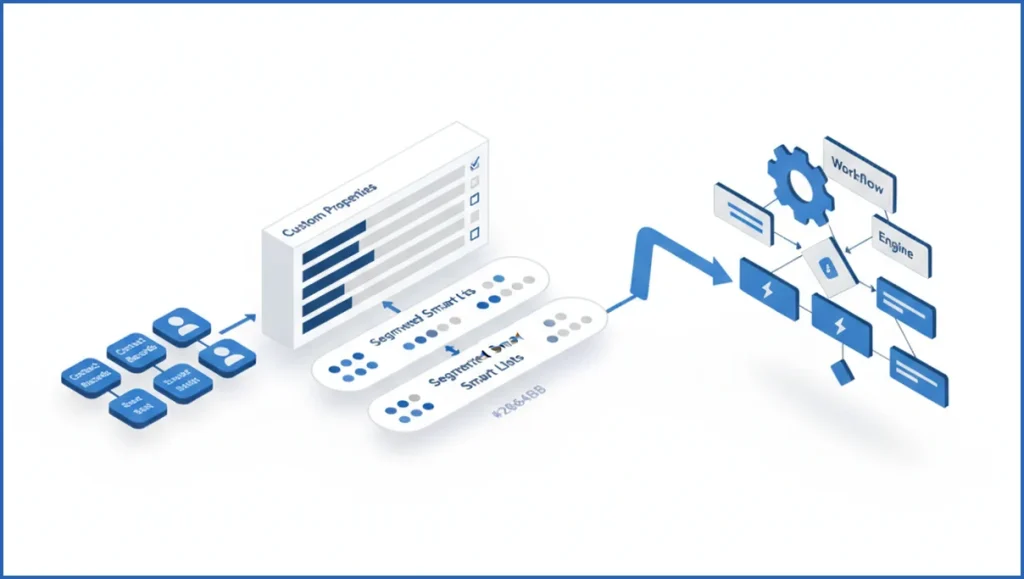
Reliable hubspot automation depends on clean data. Before building anything, audit core properties like lifecycle stage, lead status, original source, country, and contact owner. Then add only the custom properties you actually need, such as product interest, demo region, or handoff readiness.
Next, create active lists that mirror business rules. A list like “Demo requested, no owner, last 1 day” gives you a clean workflow trigger and an easy QA view. Another useful list is “MQL but no sales activity in 3 days.” Lists are not just for sending emails. They are control surfaces.
Keep naming tight. Use prefixes like WF -, CL -, and LS – for workflows, contact lists, and lifecycle fields. Teams building broader automation stacks often borrow the same discipline used in SEO automation software reviews because naming and inputs decide whether systems scale.
Build your first workflow step by step
Build one workflow around a real conversion event. A strong first example is a demo request form. Trigger enrollment when form submission equals Demo Request and contact owner is unknown.
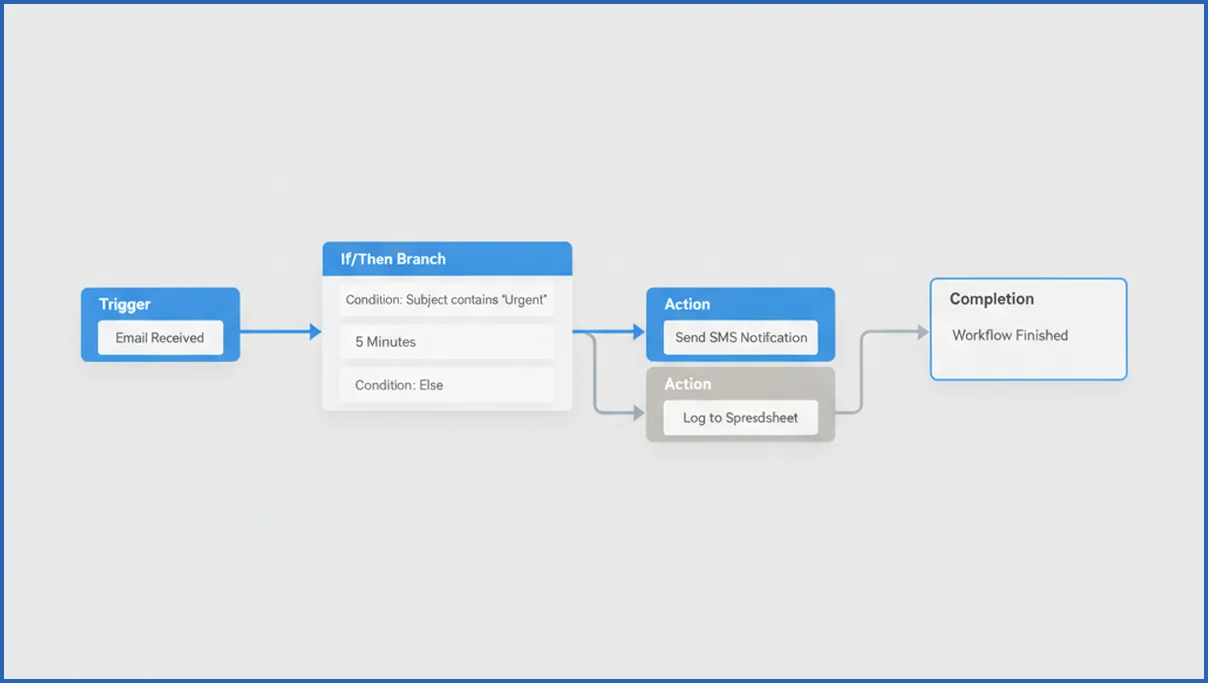
Then add actions in order. Set lifecycle stage to MQL, stamp a “demo requested date” property, rotate owner by territory, and create a task due in 15 minutes. Add a 10-minute delay, then check whether the task is complete. If not, notify a backup manager.
Use branches sparingly. Too many if-then paths make audits painful. Here is a clean structure:
Trigger: Form submission = Demo Request
Action 1: Set lifecycle stage = MQL
Action 2: Copy country to sales region
Branch: If region = UK, assign owner = UK queue
Branch: Else if region = US, assign owner = US queue
Action 3: Create follow-up task
Delay: 10 minutes
Branch: If task incomplete, send internal alert
For enrollment rules, turn re-enrollment off unless the action should repeat. A demo request usually should not create three deals. If you use AI to draft follow-up copy, this drip campaign personalization guide helps keep automation from sounding robotic.
Automate sales handoffs without dropping leads
Sales handoffs fail when marketing and sales use different definitions of readiness. Fix that with explicit properties and timing rules. A handoff workflow should assign the owner, create the task, log the source, and notify the rep in one pass.
Use an
- entry trigger
- owner assignment rule
- task creation step
- manager fallback alert
sequence. For example, route enterprise leads with company size above 200 employees to AEs, while smaller leads go to SDRs. If your attribution model is messy, connect HubSpot outcomes to GA4 MCP reporting so you can check whether faster routing improves qualified pipeline, not just response times.
Use AI and personalization to improve automation quality
AI helps most at the message layer, not the logic layer. Let HubSpot or an external model draft follow-up variants based on product interest, persona, or last page viewed. Keep the workflow rules deterministic. Keep the copy adaptive.
A simple example works well: if a lead downloads a pricing guide and visits integration pages twice, send a rep email with a short paragraph tailored to that behavior. Dynamic fields like first name, company, and product line still matter, but behavior-based context matters more. Teams doing broader AI orchestration often use patterns similar to marketing agent workflows to separate decision rules from generated content.
Measure performance and fix broken workflows
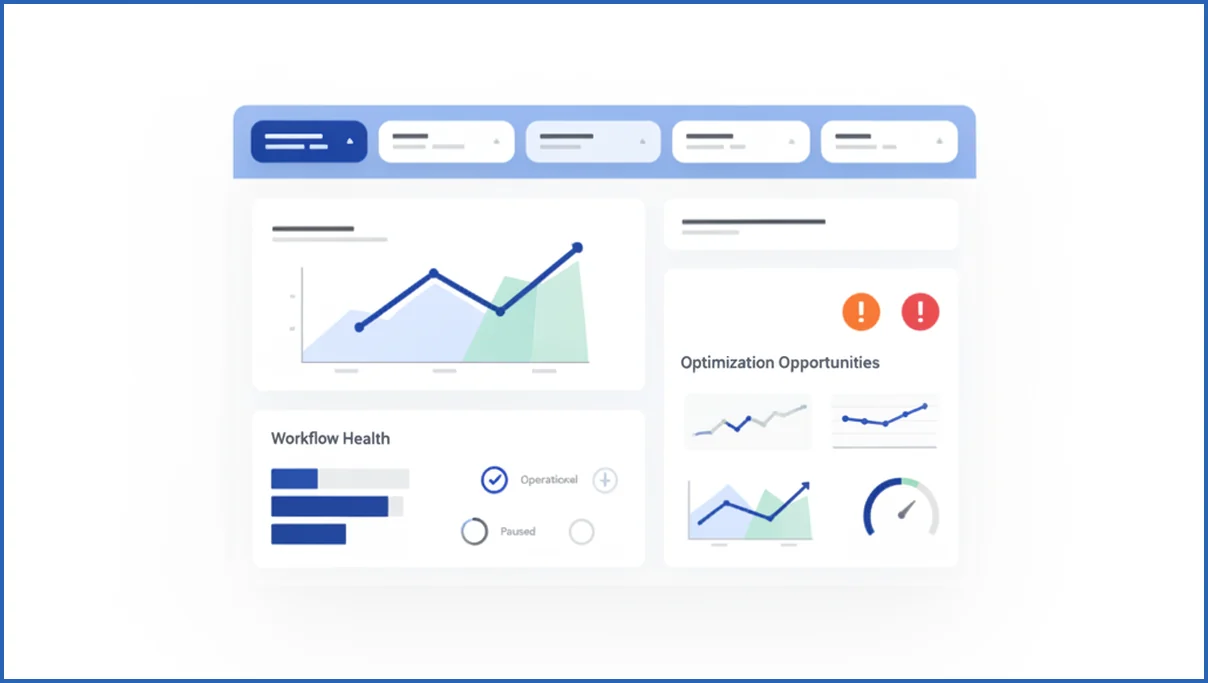
Every workflow needs three numbers: enrollment volume, completion rate, and downstream conversion. For sales handoff flows, also watch median time to first touch. If 120 contacts enrolled last week and only 68 got a completed task, you have an operations problem, not a copy problem.
Audit broken workflows monthly. Check for empty branches, outdated list criteria, duplicate deal creation, and re-enrollment mistakes. A useful review loop is: export enrollments, compare with CRM outcomes, then inspect edge cases. If you already analyze pipeline and traffic with MCP-based reporting tools, bring HubSpot workflow outputs into the same review so channel data and CRM actions tell one story.
How AI Mode changes HubSpot automation content planning
Google AI Mode raises the bar for HubSpot automation content. Search users now expect direct answers, examples, and next steps in one view. That means your workflow pages should explain the trigger, action, result, and business use case fast. Instead of writing broad automation overviews, build content around specific jobs like lead routing, re-engagement emails, lifecycle stage updates, and deal handoffs. If you need background on this shift, review Google AI Mode basics.
Google has shown stronger support for query refinement and synthesized answers across complex searches (Google I/O 2025). In practice, that favors pages with clean structure, plain language, and distinct scenarios. For HubSpot, each page should connect one workflow pattern to one search intent. Include exact objects, such as contacts, companies, deals, and tickets. Mention product names like HubSpot Workflows, Lists, Forms, and Operations Hub so the page maps to real user tasks.
- Lead with a specific use case, not a category definition.
- Add short steps, constraints, and expected outcomes for each workflow.
- Use headings that match natural questions your team hears in demos and sales calls.
Frequently Asked Questions
What is HubSpot automation used for?
HubSpot automation handles repeatable CRM and marketing tasks. Common uses include sending follow-up emails, updating lifecycle stages, assigning leads, creating sales tasks, rotating owners, scoring contacts, and triggering internal alerts. It is most useful where a clear event should cause a predictable next step. The value is consistency and speed, not replacing every human decision.
Which HubSpot tools support automation?
Workflows are the main automation tool, but they depend on other HubSpot features. Forms, lists, properties, email, deals, tickets, lead scoring, and reports all feed the system. Sales Hub, Marketing Hub, and Service Hub each add useful actions. In practice, the strongest setup combines workflows with well-structured properties and active lists that reflect real business rules.
How do I avoid workflow errors in HubSpot?
Keep logic simple, use naming conventions, and test with sample records before going live. Turn off re-enrollment unless you truly need repeat actions. Also, document every trigger, branch, and owner rule in one shared SOP. Most errors come from dirty properties, overlapping workflows, or unclear lifecycle definitions, not from HubSpot itself.
Can HubSpot automation replace manual follow-up?
It can replace parts of manual follow-up, but not all of it. HubSpot is excellent for immediate responses, reminders, task creation, and standard nurture paths. Human reps still matter when a lead asks nuanced product questions, stalls in procurement, or needs custom pricing. Automation should shorten the path to a real conversation, not pretend to be one.
How do I know if a workflow is working?
Check whether it changes a business result, not just whether it runs. Look at response time, task completion, meeting rate, SQL conversion, deal creation, and influenced revenue. If enrollment is high but conversion stays flat, the workflow may be adding noise. Healthy automation improves one downstream metric with fewer manual touches.
What should I automate first in HubSpot?
Start with the path from high-intent conversion to sales action. Demo requests, contact us forms, inbound lead routing, and post-form follow-up are usually the safest first workflows. They are easy to define and easy to measure. If a missed step costs pipeline this week, that process should move to the front of your automation queue.
Your next move is simple: pick one high-intent form, define the owner rule, and build a single workflow with one fallback alert. If that flow cuts response time and lifts meetings, expand from there. If it does not, your issue is probably process design, not missing automation.
How can I make HubSpot workflows more AI-friendly for search users?
Make each workflow easy to explain in one sentence, then support it with clear steps and outcomes. Name triggers and actions precisely, such as form submission, lifecycle stage change, or deal creation. Add examples, edge cases, and simple metrics like reply rate or MQL-to-SQL speed. Structure pages for direct answers, similar to answer engine optimization, so search users and AI systems can extract the key workflow quickly.
Next steps for smarter workflow planning
Strong HubSpot automation content now needs to serve both human readers and AI-shaped search journeys. Keep each page tied to one workflow problem, one audience, and one measurable outcome. That makes your setup easier to discover, easier to understand, and easier to improve over time. For teams validating performance, this GSC analysis playbook can help surface the queries and pages worth refining first.