
Last updated: September 2026
Claude Code vs Cursor: Which AI Coding Tool Fits You? The answer changed once MCP integrations entered the picture. These tools still differ in feel, with Claude Code leaning terminal-first and Cursor leaning editor-first. But external tool access now affects the decision just as much as autocomplete quality. If your work includes repo-wide changes, scripts, analytics, or internal services, the better choice depends on how well each tool fits those real workflows.
TL;DR
- Claude Code is stronger for terminal-first, agentic workflows.
- Cursor is better for visual, in-editor coding assistance.
- Your best choice depends on how you already build software.
- Use this comparison to match tool features to real tasks.
Claude Code vs Cursor: the core difference
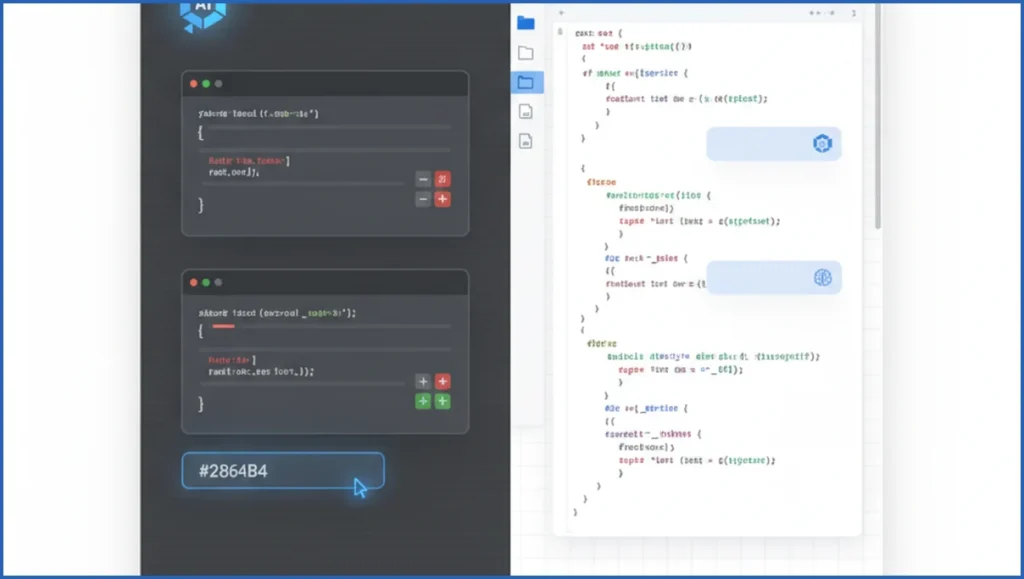
Claude Code is terminal-native. You ask it to inspect files, run commands, edit code, and reason across a repo from the command line. That makes it feel closer to an agent. Cursor is editor-native. It sits inside the IDE, shows inline suggestions, and keeps the coding loop visual. For teams already exploring agent-style workflows, that distinction matters.
In practice, Claude Code suits developers who already live in bash, git, and CLI tooling. Cursor suits developers who think in tabs, side panels, and in-file edits. Neither approach is universally better. The better fit depends on where you spend your day and how often you need multi-step changes across many files.
Feature-by-feature comparison
Claude Code handles repo exploration, shell commands, and long-form task execution well. It is strong when you need, “find every auth check, update middleware, run tests, then summarize the diff.” Cursor is better at local editing flow. You get inline completion, quick chat, and easy file-by-file review without leaving the editor.
A concrete example helps. If you need to update 17 files after an API schema change, Claude Code can search, patch, run tests, and explain failures in one loop. Cursor can do the same work, but the experience often feels more manual. For prompt patterns that extend beyond code, this Claude Code workflow guide shows why command-driven tasks scale well.
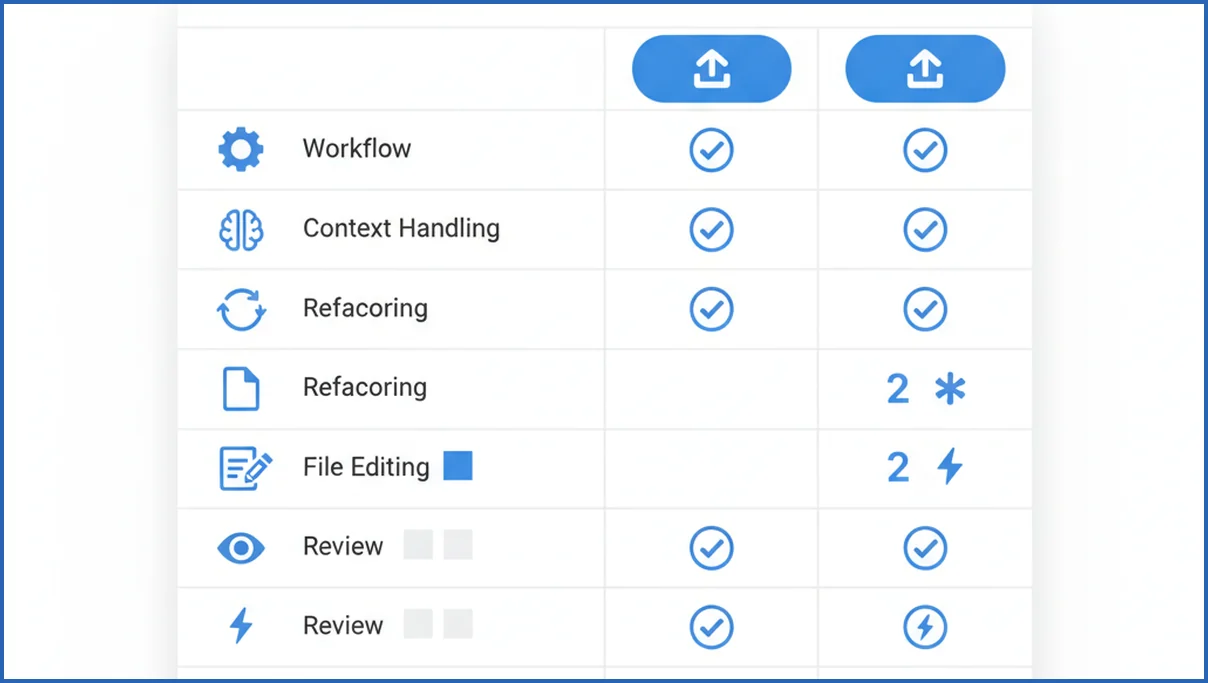
| Feature | Claude Code | Cursor | Verdict |
|---|---|---|---|
| Primary interface | Terminal | Editor | Cursor feels easier first week |
| Repo-wide changes | Strong | Good | Claude Code wins on long tasks |
| Inline editing | Limited | Excellent | Cursor wins clearly |
| Automation feel | High | Medium | Claude Code is more agentic |
Best use cases for each tool
Choose Claude Code for refactors, migration work, test-driven repair, and any task that starts with “scan the repo.” It also fits technical SEO teams building scripts, data pullers, or MCP-based helpers. If you are already using the Google Search Console MCP for Claude, Claude Code becomes a natural control layer for analysis plus code changes.
Choose Cursor for prototyping UI, fixing one bug in one file, or pair-programming inside a familiar IDE. Cursor is also better when visual review speed matters more than autonomy. Here is a simple example of the kind of command-first loop Claude Code handles well:
git checkout -b fix/auth-headers
claude "find auth header parsing, update to x-api-key, run tests, summarize changed files"
Workflow, setup, and learning curve
Cursor usually wins setup. Install it, open a project, and start prompting. The learning curve is light because most developers already understand editor chat and inline suggestions. That lowers adoption friction for mixed-skill teams.
Claude Code asks for stronger command-line habits. You need comfort with shell output, repo structure, and verifying command results. Once that clicks, daily work gets faster for complex tasks. If your team is also learning AI tool plumbing, this MCP server explanation is a useful parallel, because the same command-first mindset shows up there too.
- Start with one real repo, not a toy project.
- Use small prompts for the first three sessions.
- Require test runs after every multi-file change.
- Save your best prompts as reusable commands.
Pricing and value for teams
Pricing changes often, so exact plan details age badly. The better question is where each tool saves paid engineering time. Cursor tends to deliver value fast for individuals because onboarding is short. Claude Code can return more on larger codebases, where one good repo-wide task saves 20 to 40 minutes.
Team value also depends on reuse. A terminal-first workflow is easier to standardize with scripts, prompts, and shared command patterns. That matters for content and growth teams building small internal tools, similar to how good AI tool stacks beat random subscriptions. Cursor still has one honest advantage here: it is easier to get broad adoption from editor-first developers.
Pros, cons, and decision guide
Claude Code pros: stronger autonomy, better shell integration, and better handling of multi-step work. Cons: steeper learning curve, less visual comfort, and more need for careful review. Cursor pros: polished editor experience, quick inline help, and easier onboarding. Cons: less natural for task chains that span commands, files, tests, and summaries.
If you are a solo founder shipping product and content tools from the terminal, pick Claude Code. If you are an app developer who wants AI inside a familiar IDE, pick Cursor. If your work mixes code, data, and SEO operations, start with Claude Code and connect it to Claude MCP servers later. The wrong pick is not costly forever, but switching habits does carry a real week or two of friction.
MCP support and external tool integrations
Both tools can become more useful when they reach beyond the model and into real systems. The key difference is how that access feels during daily work. Claude Code tends to fit engineers who already live in a shell, run scripts, inspect logs, and move across repositories without relying on a single IDE pane. With MCP, it can pull structured context from approved servers and use that context in the same task loop.
Cursor can also benefit from MCP servers and similar integrations, especially when you want code assistance next to the file you are editing. That is a strong fit for frontend work, component changes, and iterative refactors. Claude Code usually feels stronger when the job spans code, commands, and external context in one run. For example, teams can connect Claude to analytics or search data through MCP servers for Claude and then use that data to guide implementation work.
If your integrations are mostly developer tools, both products can work well. If your integrations include business systems, reporting sources, or custom internal services, Claude Code often has the edge in many cases. Its workflow encourages longer task chains with less manual switching. Cursor still wins when your main priority is staying inside the editor while reviewing, accepting, and refining changes line by line.
How MCP integrations change the Claude Code vs Cursor choice
MCP changes this comparison because the tool is no longer limited to editing code. It can also pull context from external systems and act on that context. Anthropic introduced Model Context Protocol so apps and agents can connect to tools through a shared standard (per Anthropic docs). That matters if your workflow includes GitHub, local scripts, browser actions, docs, analytics, or internal services.
Claude Code gets more interesting when you want terminal-first work with live data sources. A strong MCP setup lets it inspect a repo, read files, call approved tools, and complete multi-step tasks without constant copy-paste. If you need a quick primer on the concept, see what an MCP server does. Cursor also supports MCP-style integrations, but many teams still experience it primarily as an editor-centered assistant.
- Choose Claude Code if you want CLI-driven tasks tied to external systems.
- Choose Cursor if you want integrations inside an IDE-first coding flow.
- Choose based on where you spend time: terminal automation or editor interaction.
Frequently Asked Questions
Is Claude Code better than Cursor for beginners?
Usually no, unless the beginner already works comfortably in a terminal. Cursor is easier to grasp because the interface matches normal editor behavior. Claude Code becomes easier after a few sessions, but the first steps can feel abstract. For a new developer, Cursor is often the safer starting point.
Can Cursor and Claude Code be used together?
Yes. Many developers use Cursor for inline edits and local iteration, then switch to Claude Code for repo-wide tasks, testing loops, or scripted changes. That split works well on larger projects. You keep the visual speed of an IDE while using a command-first tool for heavier changes.
Which tool is faster for code changes?
It depends on the shape of the change. Cursor is faster for short edits, quick bug fixes, and local exploration. Claude Code is faster when the task spans many files or needs command execution. Speed comes less from model quality than from how much interface friction the task creates.
Does Claude Code work without an IDE?
Yes. That is one of its defining traits. You can inspect files, edit code, run tests, and review outputs from the terminal. Many developers still keep an IDE open for reading diffs or final review, but Claude Code does not require an editor-centric workflow.
Is Cursor good for large codebases?
Yes, but with a trade-off. Cursor handles large codebases well for navigation, editing, and local assistance. It can feel less efficient than a terminal-first tool when the job involves broad search, scripted operations, or chained actions. For large repos, workflow matters more than raw capability.
Which is better for pair programming?
Cursor usually feels better for live pair programming because both people can see code, suggestions, and file context in one place. Claude Code works well too, especially when the pair is debugging through commands and logs. For visual collaboration, Cursor has the cleaner default experience.
What should I choose for solo development?
Pick based on your default environment. If you open terminal tabs before you open the editor, choose Claude Code. If you spend most of the day inside an IDE, choose Cursor. Solo developers benefit most when the tool matches existing habits, not when it promises the most features.
Test both tools on the same real task this week. Use one bug fix and one multi-file refactor. Track minutes saved, errors introduced, and how often you had to fight the interface. That small trial will tell you more than any feature page.
Does Claude Code support MCP servers like Cursor does?
Yes. Claude Code supports MCP servers, which let it connect to approved external tools and data sources through the Model Context Protocol. In practice, that means Claude Code can do more than edit files. It can pull context from connected systems and use it during tasks. For hands-on examples, see our Claude MCP guide.
Final verdict
Cursor is usually the smoother pick for editor-first coding and tight interactive feedback. Claude Code is often the stronger pick for terminal-heavy work, multi-step automation, and MCP-driven tasks across systems. If your team wants broader tool use and repo-wide execution, Claude Code has a clear advantage in many cases. If your team values IDE flow above everything else, Cursor still makes more sense.