
Last updated: September 2026
Google Analytics MCP Setup: A Practical Playbook for Teams starts paying off when your first prompts return numbers your team already trusts. The goal is not flashy AI output. It is repeatable access to GA4 data, clear permissions, and prompts that produce useful reporting on demand. With Claude and MCP, setup discipline matters more than novelty. If you lock down access, validate core metrics, and document prompt patterns early, teams can move from manual exports to faster analysis with fewer reporting mistakes.
TL;DR
- Connect Google Analytics to AI tools through a structured MCP workflow.
- Define access, scope, and guardrails before you configure anything.
- Test key queries first to verify data quality and permissions.
- Use repeatable prompts and templates to speed up analysis.
What Google Analytics MCP Is and Why It Matters
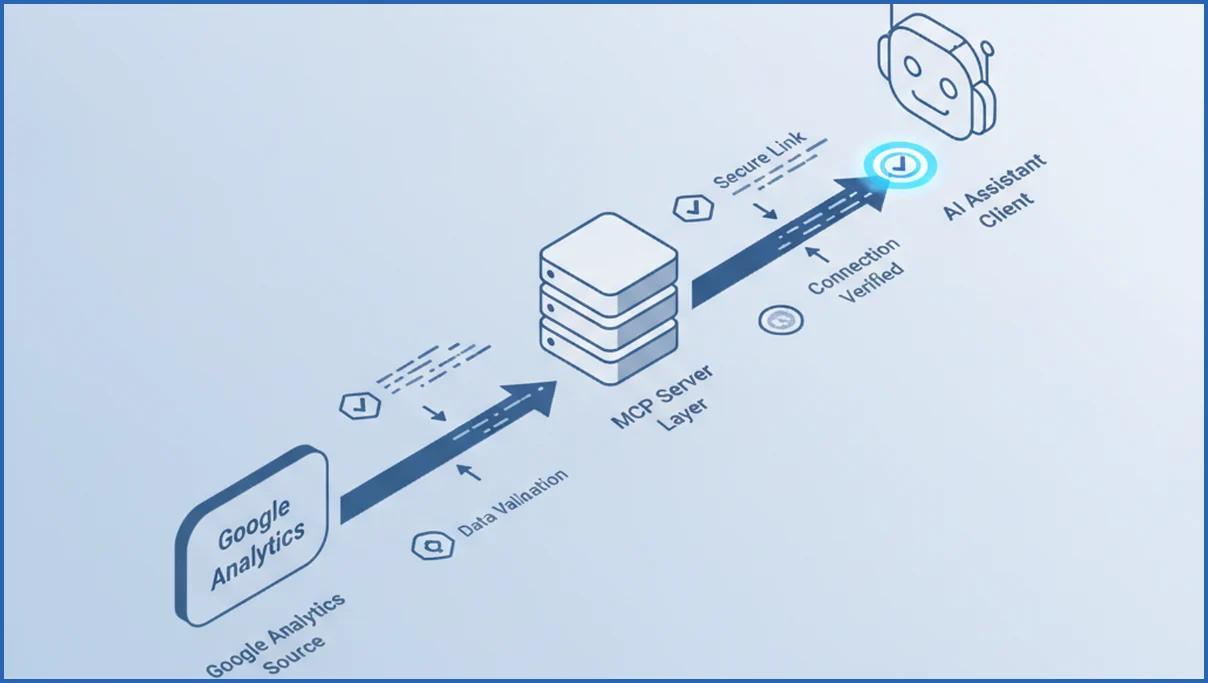
Google Analytics MCP connects GA4 data to an AI client through a Model Context Protocol server. Instead of pasting exports into chat, your assistant can query sessions, conversions, landing pages, and channel data in a controlled way. If you need the protocol basics, this MCP server explainer covers the mechanics well.
For SEO and content teams, the value is speed with structure. An analyst can ask for organic landing pages with declining engaged sessions over 28 days, then compare them to conversion trends in the same thread. That works especially well when paired with a Search Console MCP workflow so traffic and ranking data live in one analysis pass.
A practical use case is weekly reporting. Your team can ask the assistant to pull GA4 traffic by channel, flag pages with over 20% week-over-week drops, and summarize likely causes. SaveYourClicks also offers a GA4 MCP setup page if you want a reference point for supported capabilities.
Prerequisites Before You Start the Setup
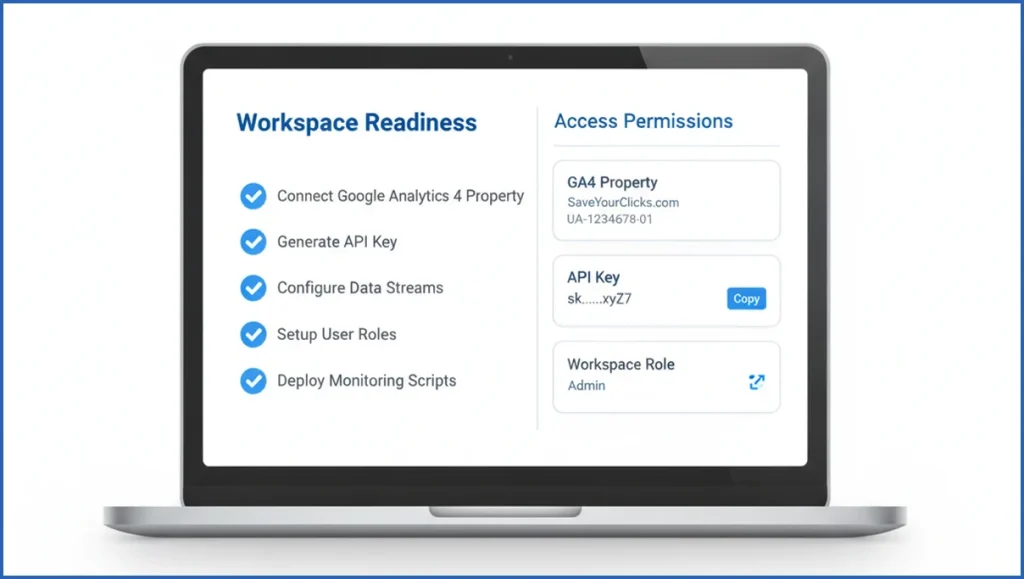
Start with access. You need a GA4 property, the right Google account, and at least Viewer or Analyst access for read-only work. If the MCP server needs property metadata or custom definitions, Editor access may be required. Many failed setups come from using the wrong email on the correct property.
Next, check data readiness. Confirm the property actually collects traffic, key events, and conversions. A property with 14 days of partial tagging will technically connect, but your assistant will return thin answers. Teams should also list the exact metrics they care about, such as sessions, engaged sessions, total users, purchase revenue, and session source-medium.
One more step helps a lot. Decide who can query what, and where outputs can be shared. If you use AI reporting in client work, line this up with your broader SEO automation stack decisions before anyone starts prompting.
How to Configure Google Analytics MCP Step by Step
Pick the MCP server first. Some teams use a hosted connector, while others run a local server for tighter control. Either way, connect the server to the GA4 property you actually report from, not a test property with stale data.
Then add credentials in your AI client or MCP config. In Claude Desktop or another MCP-compatible client, you usually define the server command, auth method, and environment variables. If your server supports OAuth, finish consent with the same Google account that has GA4 access.
- Create or select the MCP server for GA4.
- Add credentials or OAuth tokens.
- Map the GA4 property ID.
- Restart the client so tools load cleanly.
- Run a basic query for yesterday’s sessions.
Here is a simplified local config example. Exact syntax depends on the server, so treat this as a pattern, not a copy-paste promise.
{
  "mcpServers": {
    "ga4": {
      "command": "npx",
      "args": ["-y", "@saveyourclicks/ga4-mcp"],
      "env": {
        "GA4_PROPERTY_ID": "123456789",
        "GOOGLE_APPLICATION_CREDENTIALS": "/Users/team/keys/ga4-service-account.json"
      }
    }
  }
}
Validate each layer before moving on. Confirm the tool appears in the client, confirm it can list available dimensions, then confirm a simple metric query returns data. If you are new to client-side setups, this Claude MCP guide helps frame the moving parts.
How to Test Queries and Confirm the Data Works
Start with three checks. Query total sessions for yesterday, top landing pages for the last 7 days, and conversions by default channel group for the last 30 days. Those tests cover totals, dimensions, and event mapping without getting fancy.
Use prompts that force clarity. For example: “Return GA4 sessions, engaged sessions, and key events for the last 7 complete days by landing page. Show top 10 rows and totals.” Then compare the output against GA4 Explore or standard reports. Small mismatches often come from date ranges, attribution settings, or sampled logic in the connector.
A good team habit is saving proven prompts in a shared doc. That works even better when the reporting layer feeds a broader content marketing planning process instead of one-off analysis.
Best Practices for Secure, Reliable Use
Use least-privilege access. Most teams only need read access, and that should be the default. Avoid connecting personal admin accounts if a service account or dedicated reporting login will do the job. That reduces risk and makes offboarding cleaner.
Keep prompts narrow and explicit. Ask for exact metrics, exact dates, and exact dimensions. “Summarize recent performance” is vague and easy to misread. “Compare organic landing pages with more than 500 sessions over the last 28 days versus the prior 28 days” is much safer.
Build trust with regular QA. Once a week, spot-check five saved prompts against the GA4 interface. If your team uses AI for broader search analysis, tie this into an answer engine optimization workflow so reporting stays grounded in verified source data.

Common Problems and How to Fix Them
If the tool connects but returns no data, check the property ID and account first. If dimensions fail, confirm the connector supports them and that custom definitions exist in GA4. If conversions look wrong, inspect your event naming and key event setup.
Permission mismatches often show up as partial results. One user can see standard metrics, while another cannot access linked data or custom fields. When outputs differ from the GA UI, align timezone, date range, attribution model, and filters before blaming the MCP layer.
Next steps for a reliable team setup
A strong Google Analytics MCP setup is less about the connector itself and more about process. Define a small set of reporting prompts, verify numbers against GA4, and give each role clear ownership. Claude Desktop can speed up analysis, but only when permissions, dates, and metric definitions stay consistent. Start small, document what works, and expand only after your team trusts the outputs.
Real-world reporting workflows for marketing and analytics teams
Most teams do not need fifty dashboards. They need five to ten dependable reporting tasks that happen every week. Google Analytics MCP works best when you define those tasks before scaling access. A paid media manager may want landing page sessions, conversions, and engagement rate by campaign. A content lead may want blog traffic trends, top entrances, and new versus returning users. An analyst may want quick anomaly checks before the Monday meeting.
A practical workflow starts with a saved prompt library. One prompt pulls a seven day channel summary. Another compares the last 30 days against the previous 30 days. A third flags unusual shifts in conversion rate or revenue by device category. When those prompts are tested against your GA4 property, Claude becomes a fast reporting layer instead of a guessing tool. Teams using multiple data sources can also pair GA with Google Search Console MCP to compare search demand and on-site performance in separate but consistent workflows.
It also helps to assign ownership. Marketing owns the questions. Analytics owns metric definitions. Operations owns credentials and access reviews. That split prevents the common problem where one person sets up MCP, then nobody trusts the results. Start with one property, one reporting cadence, and three benchmark prompts. After two weeks, review where answers were useful, where they drifted, and which dimensions need tighter guardrails.
How Claude’s newer MCP workflow changes GA reporting
Claude’s newer MCP workflow makes GA reporting feel less like running isolated queries and more like having an analyst that can follow context. Instead of pasting one metric at a time, teams can ask Claude to inspect traffic by channel, compare date ranges, and explain anomalies in plain language. Anthropic documents also emphasize tool use patterns that let Claude call connected sources more reliably when permissions and prompts are clear (per Anthropic docs).
For GA4 users, that changes the daily workflow. A marketer can ask for sessions, engaged sessions, and conversions by source and medium, then refine the request without rebuilding the whole analysis. An analyst can turn that output into a reusable prompt for weekly reporting. If your team is still learning the model context protocol, this MCP server explainer helps frame why connected tools behave differently from normal chat.
- Follow-up questions keep the reporting context instead of restarting each query.
- Structured GA4 data reduces copy and paste errors in weekly summaries.
- Prompt templates help teams standardize answers across properties and date ranges.
Frequently Asked Questions
Is Google Analytics MCP hard to set up?
Not usually, but it is easy to set up badly. Most teams can get a basic connection working in under an hour if access and property details are ready. The harder part is defining permissions, validating metrics, and making sure prompts return data that matches GA4. That is where teams lose time.
Do I need admin access for Google Analytics MCP?
No, not for most reporting use cases. Read-only access is often enough to query sessions, users, landing pages, and conversions. You may need higher access if the connector depends on property configuration details or custom definitions. Start with the lowest permission level that still supports your reporting needs.
Can MCP read both GA4 and historical data?
It can read whatever GA4 exposes in the connected property, including older data that still exists there. It will not magically recover Universal Analytics history or data that was never collected. Before promising trend analysis, confirm your GA4 property has enough clean retention and consistent event tracking for the timeframe you want.
What should I test first after setup?
Test one total, one dimension breakdown, and one conversion report. A good sequence is yesterday’s sessions, top landing pages for the last 7 days, and key events by channel for the last 30 days. That gives you a fast read on connection quality, metric mapping, and whether your property permissions are correct.
How do I keep analytics data secure with MCP?
Use a dedicated account or service account when possible, keep access read-only by default, and store credentials outside shared documents. Limit which team members can run client-facing reports. You should also review saved prompts, because sensitive segments or internal campaign names can leak into outputs even when the connection itself is secure.
Why are my MCP results different from the GA UI?
Most differences come from mismatched date ranges, timezone settings, attribution choices, or filters. Sometimes the connector requests a metric or dimension combination that GA4 handles differently than a standard report. Compare one simple query first, then add complexity slowly. If the base numbers match, the issue is usually report design.
Can teams share one Google Analytics MCP workflow?
Yes, and they should. Shared prompts, a common naming pattern, and one source of truth for approved queries make outputs much more consistent. Give the team a short library of tested prompts and expected results. Without that, each person builds their own version of the same report, and quality drifts quickly.
Your next step is simple. Pick one GA4 property, connect it to one MCP client, and validate three core prompts against the GA4 interface. If those match, document the setup before expanding access. If they do not, fix the data model first, because no prompt can rescue broken analytics.
Can I use Google Analytics MCP with Claude Desktop?
Yes, in many cases you can use Google Analytics MCP with Claude Desktop if your MCP server is configured correctly and Claude Desktop can access it. You will need valid GA4 permissions, working credentials, and a tested server entry in Claude Desktop. Start with a simple seven day sessions query, then expand to dimensions like source or landing page. If setup basics are unclear, this Claude MCP guide provides helpful context.