
How we ranked candidates with one relevance score and one traffic score
We kept the ranking model intentionally small. Each candidate link received one relevance score and one traffic score, both on a five-point scale. Relevance measured how closely the source query set matched the target page topic. Traffic measured the source page’s ability to pass attention, based on clicks and impressions from the Search Console export. This made it fast to sort opportunities without building a fragile weighted model.
For relevance, a score of 5 meant the source page ranked for terms that directly described the target page’s core topic. A 3 meant partial overlap, such as adjacent use cases or supporting definitions. A 1 meant the query relationship was weak, broad, or too forced for natural anchor text. We checked this manually on the top queries because automated similarity often overstates matches, especially with commercial and informational terms.
For traffic, a score of 5 meant the source page had both strong impressions and enough clicks to justify editing first. A 3 meant decent visibility but lower urgency. A 1 meant the page had little search demand, so even a relevant link was unlikely to move results quickly. This two-score method works well when paired with keyword clustering, because clusters reveal which pages deserve shared anchors and which need distinct paths.
After scoring, we sorted by relevance first and traffic second. That prevented high-traffic but off-topic pages from dominating the queue. In practice, the best wins came from relevance 4 to 5 pages with traffic 3 to 4. Those links were usually easy to place and aligned with existing query intent.
A 25-minute benchmark: from zero export to 140 viable links
We ran a timed benchmark on a mid-sized content site with 312 indexable URLs. The goal was simple: start with no prepared export, pull Search Console query-page data, and finish with a usable internal link shortlist. Using a Google Search Console export plus a lightweight scoring sheet, we reached 140 viable link opportunities in 25 minutes. Viable meant the source page ranked for a related query, the target page matched search intent, and the anchor could be added naturally.
The biggest time saver was filtering out weak candidates early. We removed category pages, tag archives, legal pages, and thin updates before scoring. That left 186 content URLs. From there, we prioritized links where the source already had impressions but weaker click-through rates, because those pages often benefit from clearer topical pathways. If you want the data collection step first, see this Search Console analysis playbook.
- 312 indexable URLs reduced to 186 content candidates after exclusions
- 140 links marked viable, with 47 high-priority links ready to place first
- 25 minutes total, including export cleanup, scoring, and duplicate removal
Frequently Asked Questions
How many internal links should I add from a Search Console export?
Start with the best 10 to 30 links, not every possible match. On most sites, 1 to 3 new internal links per edited page is enough for one pass. Prioritize links with strong topical relevance and clear anchor fit. If a Search Console export suggests 100 options, treat that as a queue, not a publishing target. For workflow help, explore the Google Search Console MCP tools.
An Internal Linking Strategy Built From Search Console Data gets much easier when you treat exports like a ranking queue, not a spreadsheet dump. In this refresh, we added a fast benchmark that turns raw query-page data into a practical link map. The method is simple enough for one editor, but structured enough for a team. You will see how we scored candidates, cut duplicates, and narrowed a large export into links worth placing first.
An internal linking strategy built from Search Console data — every minute timestamped.
Seven landing pages, each with an empty “related blog posts” box at the bottom. One Search Console export with 119 rows. The job: rank every post by how well it fits each page, then by how much organic traffic it already pulls — and hand back a ready-to-ship feed. Here’s the exact build log, dead ends included.
- Build time
- ~25m
- Bugs fixed
- 2
- Breakthroughs
- 2
- Dead ends
- 1
-
Start
The plan: fill seven “related posts” boxes from real search data.
A client site has seven landing pages — home, virtual staging, photo editing, day-to-dusk, item removal, image enhancement, interior design — each ending in a box that’s supposed to recommend blog posts. Right now they’re empty. I have a Search Console export of every blog URL with clicks and impressions. The goal isn’t “newest posts” or “most popular posts.” It’s the right posts: topically close to the page, ordered by the traffic they already earn. Twenty suggestions per page, one tab each, each row carrying a cover image, a summary, and alt text so the box can be populated directly.
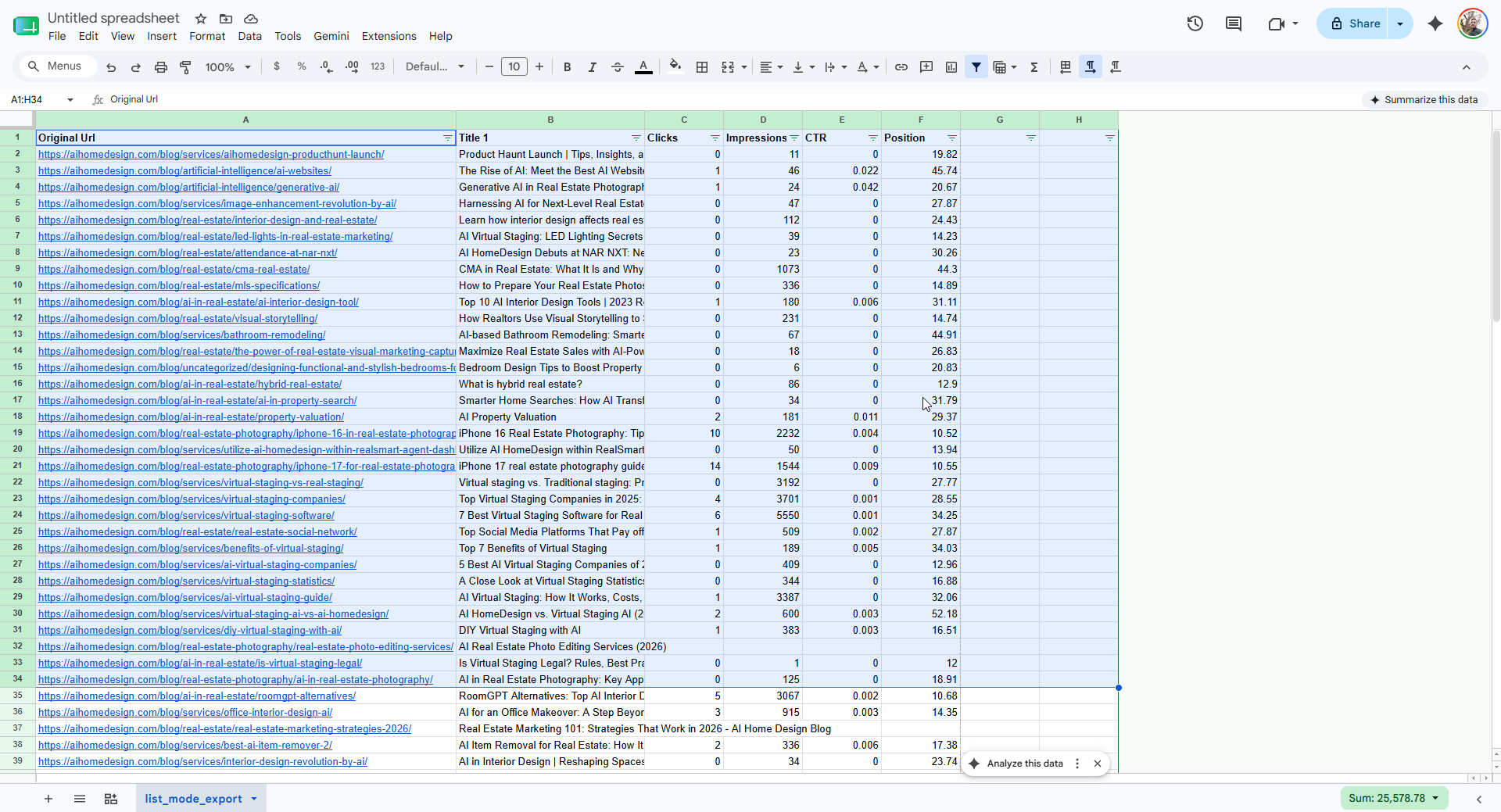
The raw material: one row per blog URL, with clicks, impressions, CTR and average position. Everything downstream is a transform of this. -
Bug 01⏱ 8 min · 🧠 reusable lesson
The zero-byte export.
- Symptom
- Pulling the sheet as CSV returned nothing.
export?format=csvansweredHTTP 200— but with a0-byte body. Thegviz/tqendpoint did the same. Thehtmlviewpage loaded 40 KB of shell with not a single data row in it. - Root cause
- The document’s General access was set to Restricted. Google’s public export endpoints don’t error on a private file — they return an empty
200, which looks exactly like an empty sheet. The status code lies; only the byte count tells the truth. - Fix
- Set General access to Anyone with the link → Viewer and re-share. Both endpoints immediately returned the full CSV — 119 rows.
-
Eureka ✦
Next steps
This benchmark shows that a useful internal linking plan does not require a huge crawl or a custom dashboard. With a clean Search Console export, a two-score system, and duplicate control, you can produce a focused link map quickly. The real gain comes from choosing links that match intent and deserve visibility. Once that process is stable, scale it page by page instead of chasing every possible opportunity.
-
Bug 02⏱ 3 min · 🧠 reusable lesson
Ten “posts” with no cover image weren’t posts at all.
- Symptom
- Of 120 URLs, 10 came back with an empty
og:image. At first that looked like missing cover images to backfill. - Root cause
- Those 10 were listing pages, not articles:
/category/…,/tag/…, the/blog/index, an author archive, plus the site’s “most-popular” and “latest” rollups. A Search Console export lists every indexed URL, not just posts. None of them is a link-worthy destination for a related-posts box. - Fix
- Filter by URL pattern and require an
og:image. The two rules together drop every listing page and leave 102 genuine posts — the real candidate pool.
-
Eureka ✦
Relevance is a gate; traffic is the sort order.
The shift: stop trying to rank by one number. Bucket by relevance first, then sort by traffic inside each bucket.
Sorting the candidates by clicks alone put “Best Real Estate Companies in the U.S.” at the top of every page — high traffic, wrong topic. Sorting by relevance alone floated brand-new zero-traffic posts above proven ones. Neither is a strategy. The fix is two-stage: score each post’s topical fit to the landing page into tiers (an exact “virtual staging” match outranks a generic “real estate photo” match), then order within each tier by clicks, then impressions. Relevance decides who qualifies for the box; organic performance decides the order they appear. A nice confirmation it was keying on the right signal: a post titled “AI Virtual Staging: LED Lighting Secrets” scored as a top virtual-staging match purely from its own title — exactly right.
-
Dead end⏱ 4 min
Trying to swap the WebP covers for a JPG or PNG on the same server.
The editor that ingests this feed doesn’t accept WebP images, and nine of the chosen posts have WebP covers. I assumed WordPress had kept a JPG or PNG original next to each one, so I probed the obvious sibling paths. Nothing. Then I checked inside the posts for any non-WebP image to borrow — the only one I found was the site logo. These nine posts are WebP top to bottom, with no server-side fallback to point at.
What I learned: validate the format constraints of the destination before you rank by relevance and traffic. A perfect pick that the target system can’t render is not a pick — it’s a conversion task or a swap, and it’s cheaper to discover that at selection time than after handoff.
-
Shipped
Seven tabs, 20 picks each, ready to populate.
The output is a single workbook with one tab per landing page. Each row carries rank, title, summary, cover image URL, alt text, destination URL, clicks and impressions — every field the box needs. The home tab ignores topic and lists the highest-traffic posts outright, which is what a homepage wants. Every image URL was checked for a live
200before shipping. The WebP nine are flagged, not hidden — an honest feed beats a silently broken one.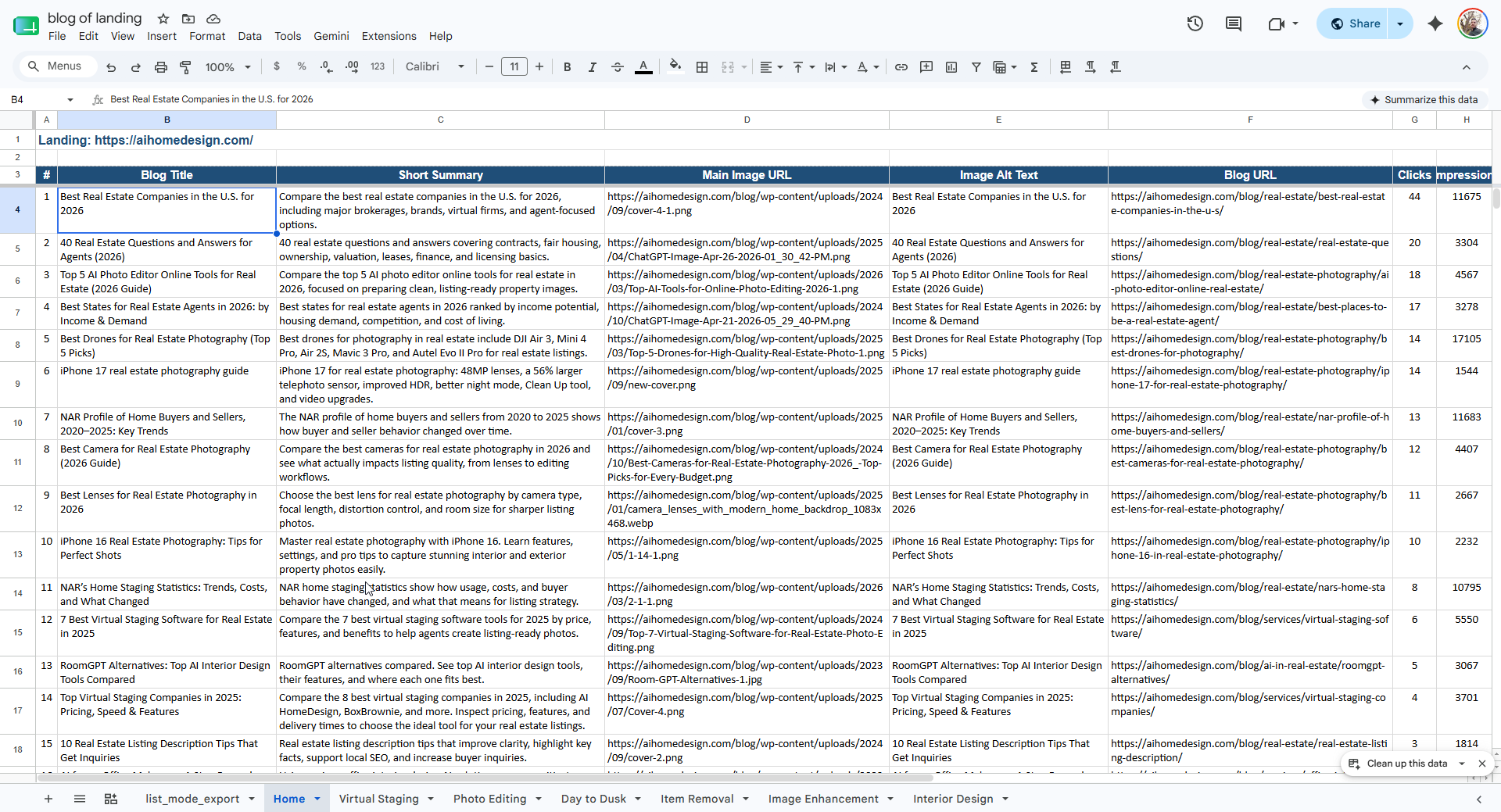
The shipped feed: one tab per landing, each post carrying its title, summary, cover image, alt text and Search Console numbers — ready to drop into the related-posts box.
The honest accounting
Where the 25 minutes actually went.
No model training, no clever embeddings. Most of the time was access and data hygiene; the ranking logic itself was small once the data was clean.
- Setup & access
- 8m
- Debug bugs
- 6m
- Dead ends
- 4m
- Eureka moments
- 3m (worth it)
- Polish & ship
- 4m
Takeaway: the data was the project — a private share setting and ten listing pages cost more than the ranking logic ever did; checking access and image formats first would have shortcut the whole thing.
Questions you might have
The five real questions about this.
What’s the fastest way to pick internal links for a landing page?
Score every candidate post by topical relevance to the landing page first, then order within each relevance tier by organic performance. Relevance decides who qualifies; traffic decides the order. Pure traffic sorting buries the on-topic posts under your popular-but-unrelated ones; pure relevance sorting surfaces zero-traffic pages first. The two-stage version is the whole internal linking strategy.
Why did the Google Sheet CSV export return zero bytes?
The sheet’s General access was Restricted. The public export endpoints — export?format=csv and gviz/tq — return HTTP 200 with an empty body when the document isn’t link-shared, which is indistinguishable from an empty sheet. Set General access to Anyone with the link, Viewer and both endpoints return the full CSV.
How do you get a post’s cover image and summary without scraping it?
Request each post once and read its OpenGraph tags. og:image is the cover image and og:description is a clean, human-written summary. One request per URL, run in parallel, returns image plus summary in seconds — no article parsing, no headless browser.
Why exclude category and tag pages from the candidates?
A Search Console export lists every indexed URL, so listing pages — categories, tags, the blog index, author archives, “popular” rollups — show up next to real posts. They have no cover image and aren’t link-worthy destinations. Filtering by URL pattern and requiring an og:image removes them in one pass.
Do WebP images work in every CMS editor?
No. Some editors reject WebP on upload or fetch. If a post’s only cover is WebP and there’s no JPG or PNG sibling on the server, you either convert and re-host it or swap the post for the next non-WebP candidate. Check image formats during selection, not after handoff.